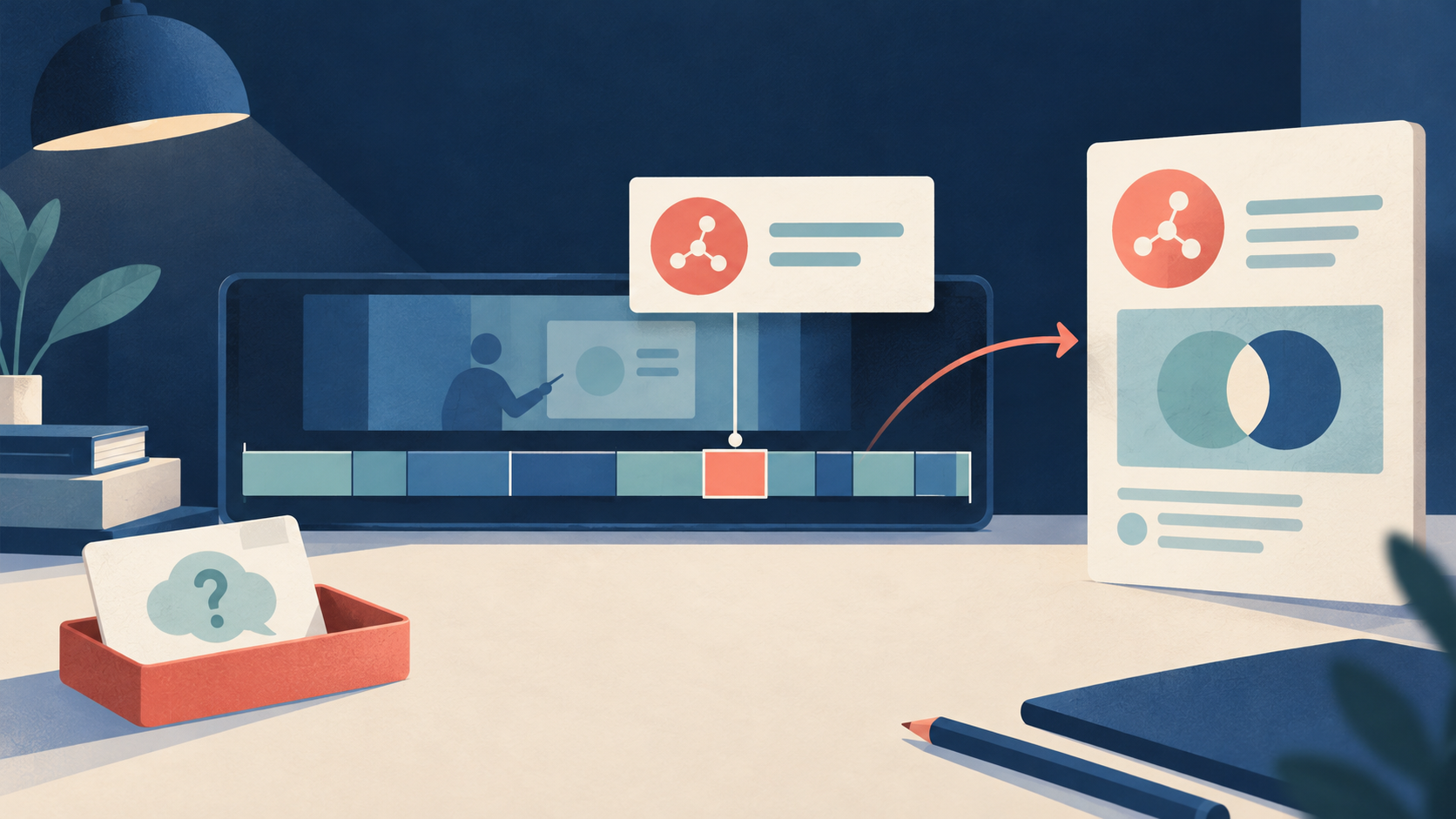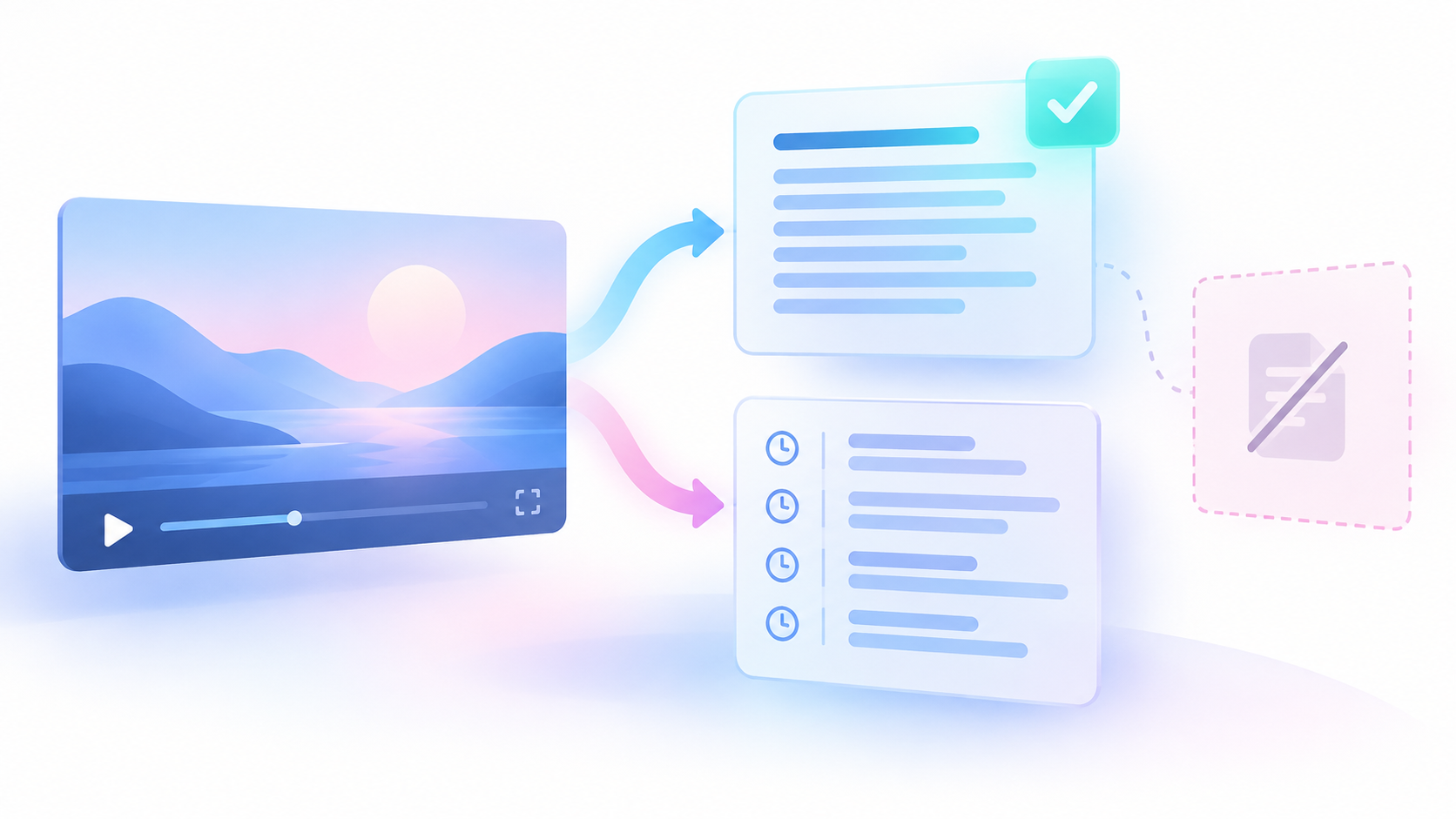
Start with the source player and a small text file. Anki is a study tool that shows questions and answers on cards. A note stores the information used to make a card. A deck is a group of cards. This guide uses one question and answer per note.
Public learner questions mention audio and transcript alignment and video clips with dual subtitles. These questions show why a card needs a clear connection to its source. They do not establish demand size or tool performance. This method keeps playback in the source player. It covers checked text cards and import checks, rather than audio embedding or clip setup.
1. Set one learning aim
Choose one public lesson and one language you can check. Write the learning aim before you choose caption lines. For example, you might want to identify the field that connects two tables in a lesson.
Choose a short passage that answers that aim. Do not turn every caption line into a card. Caption boundaries show when text appears. They do not necessarily mark a complete idea.
Set three success checks for the small deck:
- Each answer follows from a passage you have checked.
- Each note keeps enough source information for another check.
- A second import changes the intended answer without creating an unwanted note.
Keep an uncertain passage out of the study deck. You can return to it later. A plausible answer is not a checked answer.
2. Use existing captions as a source copy
A caption track is timed text stored with a video. A cue is one timed piece of that text. You can use accessible captions and the source player to prepare a few cards by hand. If you already have timed captions, proceed to the passage check.
For help with missing captions, use the separate guide to getting and checking a YouTube transcript. That step supplies source text. It does not decide what belongs on a card.
The YouTube Transcript Scraper can collect existing public caption tracks. An Actor is a hosted program. A Task is a saved input preset for that program. The timestamped transcript JSON Task is a documented starting point for timed text.
JSON is a text format that stores named values and lists. Use it here because it preserves cue times. Plain text alone does not establish where cues end. The Actor does not create speech-to-text or download audio or video. It supplies source material; you design and check the cards.
This small input matches the supplied public input rules:
{
  "includeFailedInputDetails": true,
  "outputFormats": ["json"],
  "preferredLanguages": [],
  "startUrls": ["https://www.youtube.com/watch?v=dQw4w9WgXcQ"]
}Before you run it, replace the entire sample entry in `startUrls` with your intended public lesson URL. The sample URL is an input example. It is not evidence of a suitable lesson or a successful run.
An empty `preferredLanguages` list permits selection of the best available caption track. It does not require English. If your learning aim requires English, set that field to `["en"]`. Language preferences are tried in order. If none match, the Actor reports a language-unavailable failure instead of returning another language.
The Actor accepts 1–1,000 direct video URLs or video IDs. It processes a repeated video ID once. It does not accept channel, playlist, or search input. For this method, begin with one video. These are documented features, not results from a run performed for this guide.
3. Keep the source record separate from your cards
A field is one named value in a record. Before writing cards, save these returned fields when available:
| Field | What to retain |
|---|---|
| `videoId` and `videoUrl` | The video identity and source address |
| `transcriptLanguageCode` | The selected caption language |
| `isAutoGenerated` | The returned caption-source flag |
| `segments` | Original cue text and timing values |
| `status` and `statusReason` | The extraction outcome and explanation |
| `scrapedAt` | The collection time |
Keep the original cues unchanged. Put corrections in a separate log. This lets you distinguish the text you received from the answer you later wrote.
Each segment contains `text`, `startSeconds`, `endSeconds`, and `durationSeconds`. Keep the returned values. A missing duration is unknown. It is not a duration of zero seconds. A playback start of zero seconds, by contrast, means the start of the video.
Inspect both the returned video records and the run summary named OUTPUT. Successful unique videos produce dataset rows, which are individual result records. Failed inputs do not produce those successful transcript rows. Inspect OUTPUT for failed-input details. An empty result is not enough to diagnose missing captions.
Caption language, source flags, segment counts, and coverage describe the returned track. They do not prove word accuracy. A segment count also does not tell you how many useful cards you can make. The public Actor contract supplies these limits.
4. Check the passage before drafting the answer
Open the chosen passage in the video. Play the sentence before it and the sentence after it. Extend that window when the explanation needs more context. Context means the surrounding words or pictures needed to understand the answer.
Check the passage in this order:
- Listen for the words that support the answer.
- Check names, numbers, units, conditions, and words such as “not.”
- Identify what words such as “it” or “this” refer to.
- Inspect the screen when a table, diagram, or code example supplies needed information.
- Write a short context note and record any caption correction.
- Hold the passage if a needed word or meaning remains uncertain.
Do not fill an unclear word with the answer you expect. Do not infer a missing definition from a familiar term. If the lesson does not support the proposed answer, choose another question or another passage.
For a card that needs exact wording, follow the separate method for checking a YouTube quotation. Most cards can use a short restatement in your own words. That restatement must keep the source meaning, including its conditions.
A clear recording can still contain a factual mistake. Checking what the lesson says is separate from checking whether its claim is true. If you have a reason to doubt the claim, keep the card on hold until you resolve it.
5. Write one question with one answer
Write the question before you shorten the answer. A useful question names what the learner must recall. It should make sense when the learner sees it away from the video.
Avoid prompts such as “What does this do?” The word “this” depends on unseen context. Name the object or operation instead. If the question refers to the lesson's particular example, say so.
Keep one main fact in each question. Split a prompt that asks for two unrelated facts. Keep a condition with the fact it controls. Do not remove a condition merely to make the answer shorter.
Use these checks on each draft:
| Check | Required decision |
|---|---|
| Does the checked passage answer the question? | If not, reject or rewrite the question. |
| Can the question stand without the video image? | If not, add the needed context or hold it. |
| Does the answer preserve conditions and units? | Restore them before review. |
| Could more than one answer fit the prompt? | Make the question more precise. |
| Does it ask for unrelated facts? | Make separate notes. |
An answer can be short without being vague. Keep supporting context behind the answer so you can inspect it later. Do not make the front of the card reveal the answer.
6. Set up fields that survive later edits
Use a custom note type. A note type defines the fields and card layout. Configure it to show one question on the front and its answer on the back. Show the source link and cue with the answer so you can check it again.
Use these six fields in this order:
| Field | Saved value |
|---|---|
| `SourceKey` | A unique, permanent identifier for this source and card |
| `Question` | One clear prompt |
| `Answer` | The short answer supported by the checked passage |
| `SourceURL` | The actual video address |
| `Cue` | Playback time, checked interval, and a short context note |
| `ReviewState` | Your decision on whether the note is ready |
Keep `SourceKey` first. Anki's handling of repeated notes depends on the note type and first field. Test the intended behavior rather than assuming that every import updates existing notes. The Anki text-import manual explains separated fields, mapping, and duplicate handling.
A source key might combine a video identifier, cue time, and card number. Assign it once. If you rewrite the question or correct the answer, keep that key. If you later adjust the cue time, do not automatically rebuild the key from the new time. A different key could make the revision look like a new note.
Use simple review labels, such as `needs_review` and `reviewed`. These are labels you assign. They are not Actor results or proof of an independent check.
Keep a separate correction log with the source key, original cue text, corrected wording, reason, checked interval, and review date. Your note file, review decisions, and Anki import settings are owner records. A public Task page does not reveal or verify those records.
7. Save the file and test two notes
Save the six fields as UTF-8 tab-separated text. UTF-8 is a text encoding that supports characters from many languages. Tab-separated means a tab character separates each field. Use one record per line for this small test.
Keep the first file simple. Use one line in each field and no tab characters inside field values. If your content requires tabs or line breaks within fields, follow Anki's documented quoting rules and inspect the preview. Do not replace text blindly if that changes its meaning.
Follow these steps:
- Create a temporary test deck with the custom note type.
- Prepare two reviewed notes with different source keys.
- Open the import preview and select the tab separator.
- Map each file column to its matching field.
- Confirm that the first column maps to `SourceKey`.
- Import the file and inspect both cards.
- Change only one answer in the file. Keep its source key.
- Import again with the intended update settings and the same note type.
- Confirm that the answer changed and no unwanted extra note appeared.
Inspect the displayed question, answer, cue, and source link. Open each real source link and check the stated time in the player. Do not treat a visible URL as proof that it opens the intended lesson.
A built-in two-field note type needs a different, explicit mapping. Do not import this six-field file into it without deciding where each value belongs. If the update test fails, stop and resolve the mapping, key, note type, or duplicate setting before importing more notes.
Worked example: original fiction
This example is original fiction. It is not an Actor result, a real lesson, or a completed Anki test. The proposed import steps below have not been run.
In the fictional lesson, a passage at 02:14 explains that two sample tables use a stable ID to connect their records. ID means identifier. Here it is a value that identifies a sample. A later fictional passage says that changing a sample label must not change its ID.
The first passage starts at 2 minutes and 14 seconds:
`2 × 60 seconds + 14 seconds = 134 seconds`
For this fictional example, its end is 142 seconds. Its length is:
`142 seconds − 134 seconds = 8 seconds`
The second fictional passage runs from 142 to 148 seconds:
`148 seconds − 142 seconds = 6 seconds`
These intervals are invented teaching values. They are not measured video results. The key `demo-video:134:01` identifies the first fictional card. The ending `01` is a card number, not an accuracy score.
Prepare these two fictional notes:
| Field | Fictional note 1 | Fictional note 2 |
|---|---|---|
| `SourceKey` | `demo-video:134:01` | `demo-video:142:01` |
| `Question` | In this lesson's sample tables, which field joins the two tables? | In this lesson, should a sample ID change when its label changes? |
| `Answer` | The stable ID. | No. Keep the sample ID unchanged. |
| `SourceURL` | Leave empty; no real video exists. | Leave empty; no real video exists. |
| `Cue` | 02:14; 134–142 seconds; sample-table join | 02:22; 142–148 seconds; label-change rule |
| `ReviewState` | `needs_review` | `needs_review` |
The example leaves the source URLs empty because they are missing. It does not put a sample video URL in their place. The notes remain outside a real study deck because no actual source can be checked.
The first question narrows “Which field joins the two tables?” to the lesson's sample tables. It does not teach that every table must use the same joining field.
For a proposed duplicate test, change the first answer to “The stable sample ID.” Keep `demo-video:134:01` unchanged. After a correctly configured update, the expected result is still two notes, with the first answer revised. A third note would show that this import did not perform the intended update. These are expected outcomes for a test, not reported test results.
On a real lesson, replace the fictional content with checked source material. Keep actual playback times, a working source link, and your review record.
Resolve failures before expanding the deck
Use the observed failure to choose the next action. Do not treat every problem as missing captions.
| Observed state | Next action |
|---|---|
| Extraction failed | Inspect OUTPUT before drafting from that input. |
| Required language is unavailable | Keep the requirement or deliberately choose another accessible track. |
| A needed word is unclear | Hold the note; do not guess the answer. |
| The screen supplies unseen context | Add sufficient context or reject the prompt. |
| A source value is missing | Preserve it as unknown, not zero. |
| Columns appear in the wrong fields | Correct the separator or mapping, then preview again. |
| A revision creates an unwanted note | Check the key, note type, and duplicate settings. |
| A source link points to the wrong video | Correct it and repeat the source check. |
Two correctly displayed notes show that those notes passed your small check. They do not establish that every future import will work or that every future answer is correct. Review each added passage. Repeat the import test when you change the file structure or note type.
Sources & further reading
- Chronometrica YouTube Transcript Scraper — checked 2026-10-25; public build 0.1.43 contract, no runtime test
- YouTube timestamped transcript JSON Task — checked 2026-10-25; public preset presence only, saved input and execution not tested
- Anki Manual: Text Files — checked 2026-10-25; UTF-8 text import, field mapping, and duplicate rules
- Public question about audio and transcript alignment — observed 2026-10-25; reader problem only, exact publication date not established
- Public question about Anki clips and dual subtitles — published 2024-11-12, observed 2026-10-25; reader problem only
By Chronometrica · Updated
Back to top ↑